Connect multiple readyMini Pay devices to my account

You have the option of connecting multiple readyMini Pay devices to your account. This means you can assign a specific readyMini Pay to an input device you use. You can find out how this works here.
First, pair your readyMini Pay, like the one you previously connected to your POS system. Then assign a readyMini Pay to your desired input device. This is how it works:
Linking your readyMini Pay with your account
The pairing works as follows. You can find detailed instructions at this link.
- Log into your cash register system on your device (e.g. readyMax, smartphone, PC)
- Tap settings (gear)
- Select readyPay and choose Pair new terminal
- Now switch on your readyMini Pay (press and hold the button at the top right of the device)
- On your readyMini Pay, tap Pair Terminal and then select Pair Now
- A pairing code will appear. Enter this pairing code in the window opened in step 3 in your cash register system
- Your account is now linked to readyMini Pay
- Now select Start Terminal Mode on your readyMini Pay, read through everything carefully and then select Understood
- Please make a test payment to make sure everything is working properly. The device may restart during this process
Assigning your readyMini Pay to an input device
For example, you have two input devices on which you use the ready2order cash register system. Let's call these input device A and input device B. You also have two readyMini Pay devices (readyMini Pay 1 and readyMini Pay 2) that you have already linked to your account. You can now set which readyMini Pay should be addressed by which input device when making a card payment. If, for example, you want readyMini Pay 2 to be addressed when you start a card payment from input device A, you can set this up as follows.
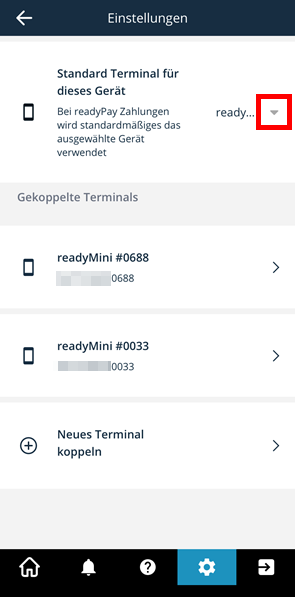
- On your input device, go to settings (gear icon). Now select the drop-down field shown in the following image
- Select your desired readyMini Pay, which should be addressed by the input device you are now using
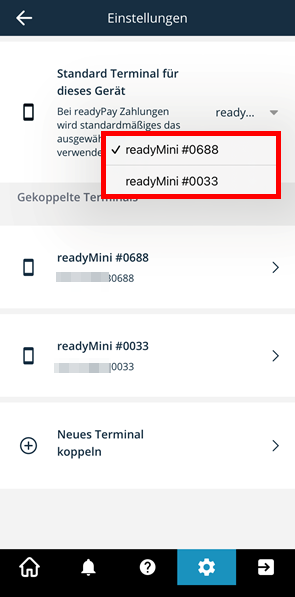

The numbers are the last four digits of the serial number. You can also find this on the back of your device, starting with "SN: [...]".
