How to create a new employee

If multiple people work with ready2order, individual employee accounts help you track who performed which action and assign permissions as needed. In this guide, we show you how to create a new employee, edit their details, or delete the account.

Create a new employee

  1. Log in to the Admin interface.
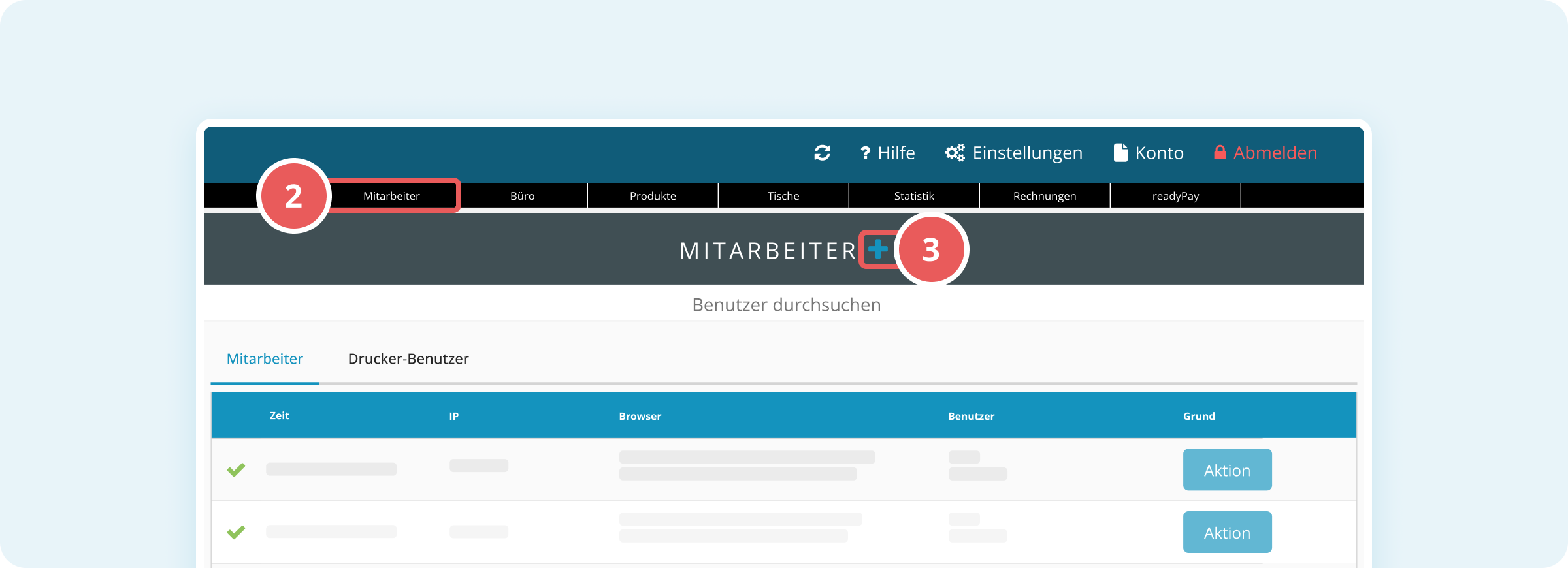
  2. In the top navigation bar, click Employees.
  3. Next to the heading “EMPLOYEES”, click the blue plus icon (+).
    The Add employee dialog opens.
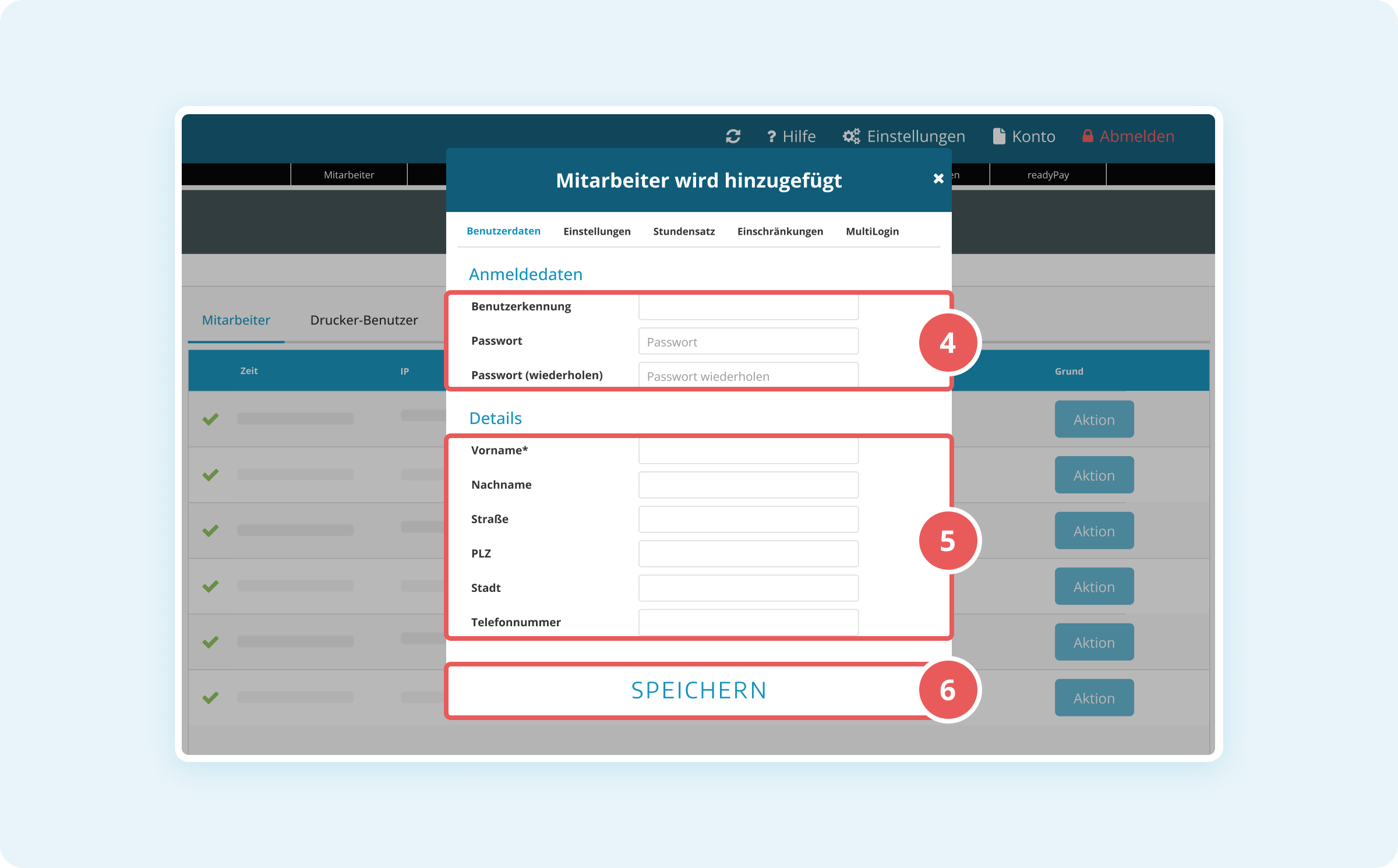
  4. In the User data tab, fill in the following required fields:
    • Username: the employee’s email address or username
    • Password: the employee’s password (at least 4 characters)
    • Password (repeat): repeat the password to confirm
  5. Optionally fill in Details (first name, last name, street, ZIP/postal code, city, phone number).
  6. At the bottom of the dialog, click SAVE.

The new employee is created and will appear immediately in the employee overview.

Tip: The password must be at least 4 characters long. We recommend using a secure password with numbers and special characters.

Edit employee details

You can change an existing employee’s details at any time:

  1. Log in to the Admin interface.
  2. In the top navigation bar, click Employees.
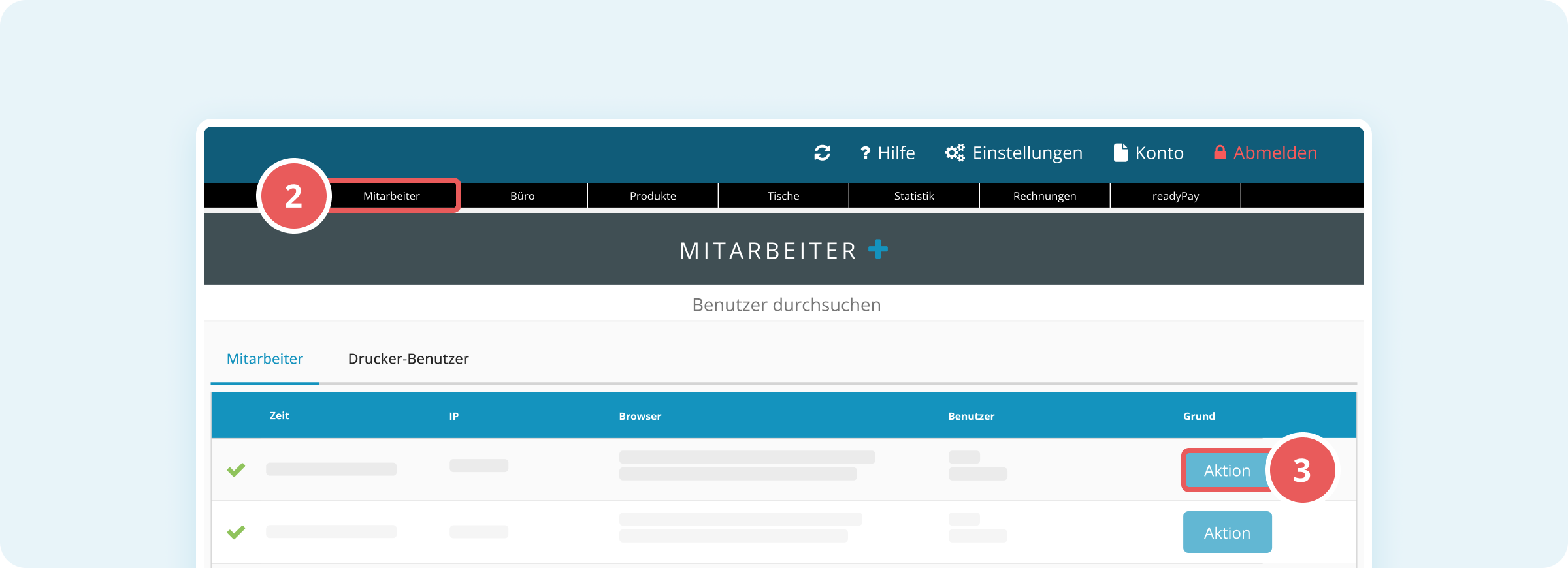
  3. For the relevant employee, click the blue Action button on the right.
  4. From the dropdown menu, select Edit.
  5. Update the desired information in the dialog.
  6. At the bottom of the dialog, click SAVE.

The changes are applied immediately.

Employee settings overview

In the Add employee dialog, you can configure additional settings using the tabs at the top:

  • Settings:
    • Role: Assign a previously created role (e.g., Administrator, Cashier, Stock manager).
    • Language: Choose the employee’s interface language.
    • Training mode: Enable training mode for this employee only.
  • Restrictions:
    • Area restrictions: Limit the employee to specific table areas (e.g., indoor area only or terrace only).
  • MultiLogin:
    • Set up a PIN to quickly switch between employees on the same device.
Note: If you want to switch quickly between different employees on the same device, Multi-Login is useful. You can read how to set up Multi-Login here.

Delete an employee

If an employee leaves the company, you can easily delete the account:
  1. Log in to the Admin interface.
  2. In the top navigation bar, click Employees.
  3. For the relevant employee, click the blue Action button on the right.
  4. From the dropdown menu, select Delete.
  5. Confirm the security prompt with Yes, delete.

The employee has been deleted and will no longer appear in the overview.

Important: Deleting an employee cannot be undone. However, all sales and actions by the employee will remain available in reports.


How did we do?