Ports and Functions of the readyTab

The readyTab is your all-in-one POS system with an integrated card terminal, scanner, and receipt printer. To help you make the most of all its features, this article shows you which ports and buttons your device has and what they are used for.
This overview is particularly helpful during initial setup, when connecting external accessories (such as barcode scanners or cash drawers), and for troubleshooting.
Overview of Ports and Functions
Front
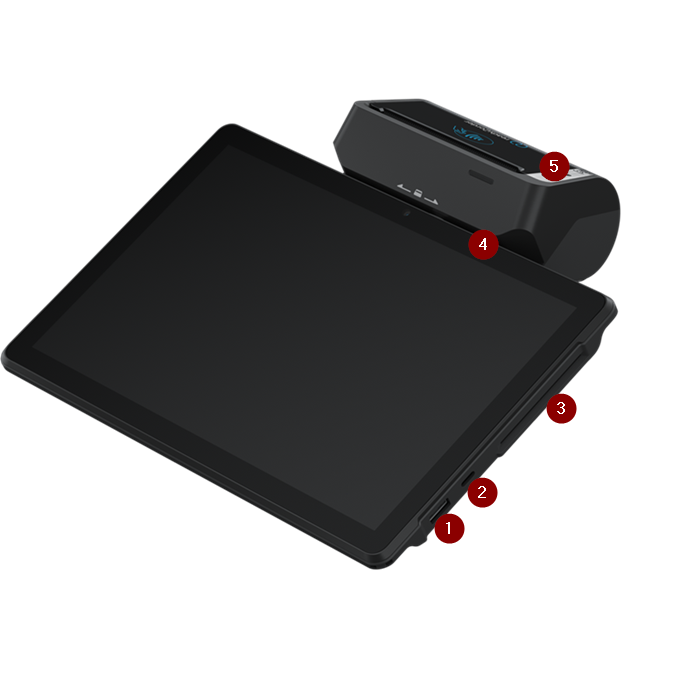
- USB-A port: Connect external accessories here (e.g., barcode scanners, cash drawers).
- USB-C port: Plug the included power cable here to charge your readyTab. This port also supports data transfer.
- Chip card insertion slot: To use this slot, fully insert the card and leave it in the device until the transaction is complete.
- Magnetic stripe card slot: For magnetic stripe cards, swipe the card quickly through this slot.
- NFC module for tapping cards: For contactless payments, hold the card or smartphone close to this module briefly.
Left Side
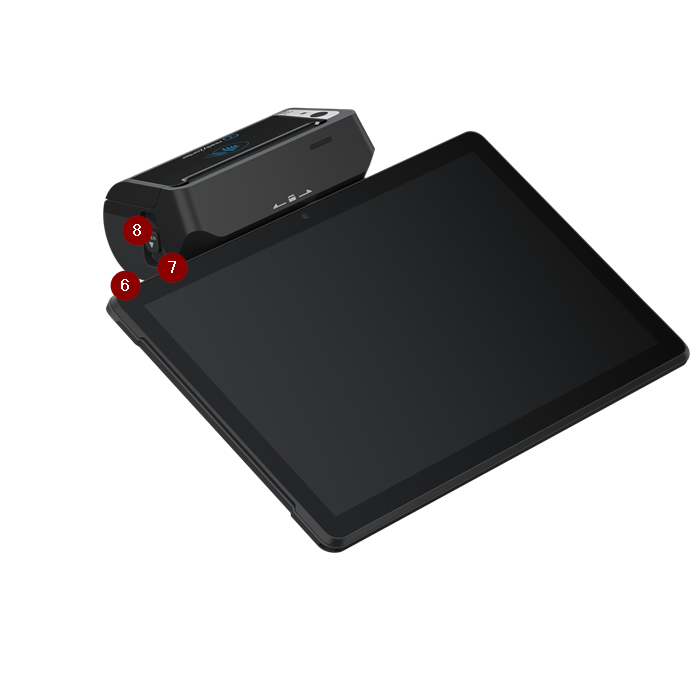
- Power button: Press this button briefly to turn the screen on and off. To turn the device on, press and hold the button (approx. 3 seconds).
- Volume buttons: Press the upper half to increase the volume. Press the lower half to decrease the volume.
- Receipt roll compartment release button: Press this button to open the receipt roll compartment and replace the roll.
Back
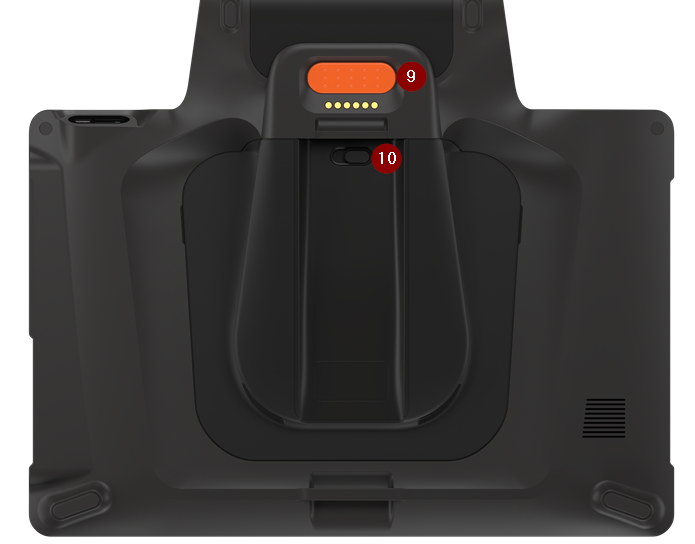
- Scanner button: Press this button to activate the integrated barcode scanner.
- Battery/SIM card compartment release button
Use Cases for Key Ports
USB-A port:
- Connect a barcode scanner (for faster product code scanning)
- Connect a cash drawer (automatically opens during checkout)
- Connect an external keyboard or mouse
USB-C port:
- Daily charging of the device (overnight or between shifts)
- Data transfer during software updates
Card payment functions (Chip, Magnetic Stripe, NFC):
- Chip slot: For traditional chip cards
- Magnetic stripe: For older cards or as a fallback
- NFC: For Apple Pay, Google Pay, and contactless cards (fastest method)
Note: If you experience issues with individual ports or functions, please contact our support. You can find the contact details in the admin interface under Help & Support.
