TSE Activation – How Do I Activate TSE Receipt Signing for My Cash Register?
Note: This guide only applies to Germany. The TSE requirement is part of the German Cash Register Security Ordinance (KassenSichV).
The technical security system (TSE) is legally required in Germany and protects your cash register records from later manipulation. This gives both you and the tax office added security. Since 2020, all electronic cash register systems in Germany must be equipped with a TSE. In this guide, we show you how to activate TSE in ready2order.
Requirement: For this guide, you need an active TSE package, which you can purchase in the account dashboard. You can also purchase it during the TSE activation process.
Step-by-Step Guide
- Log in to the Administration Interface.
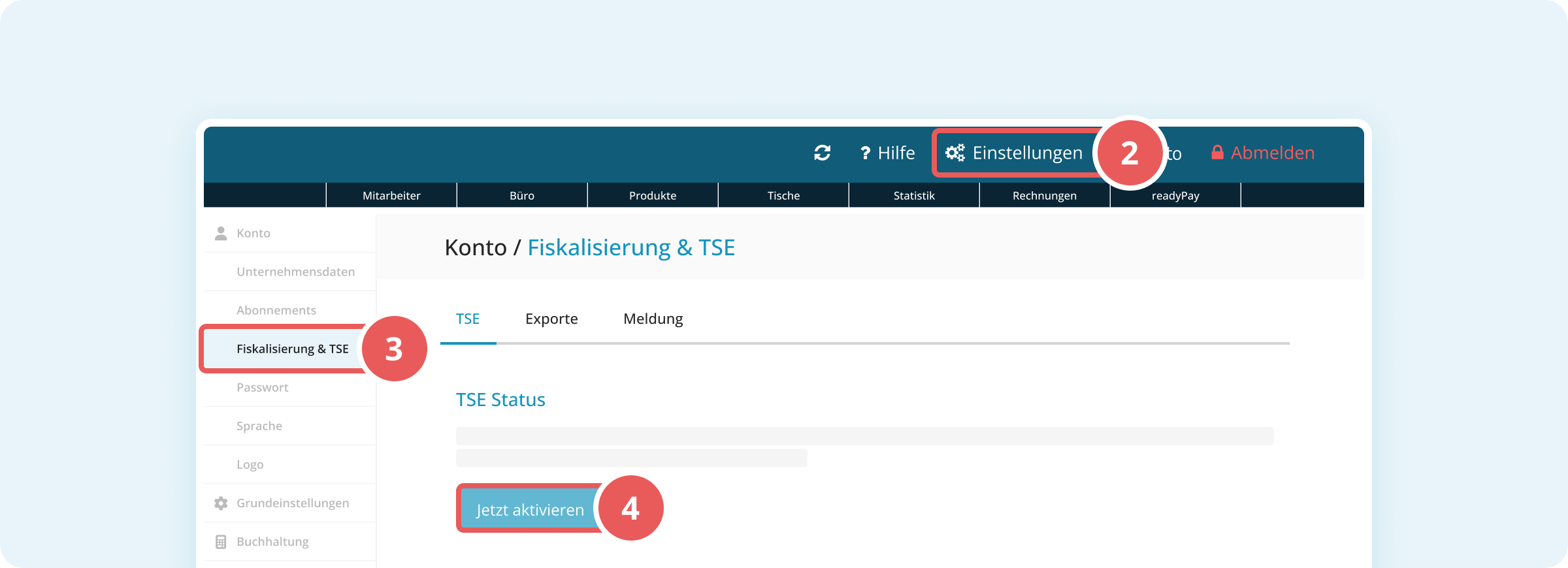
- Click Settings (gear icon) in the top right.
- In the left sidebar, under Account, click Fiscalization and TSE. The TSE tab is then displayed automatically.
- In the TSE Status section, click the blue Activate now button.
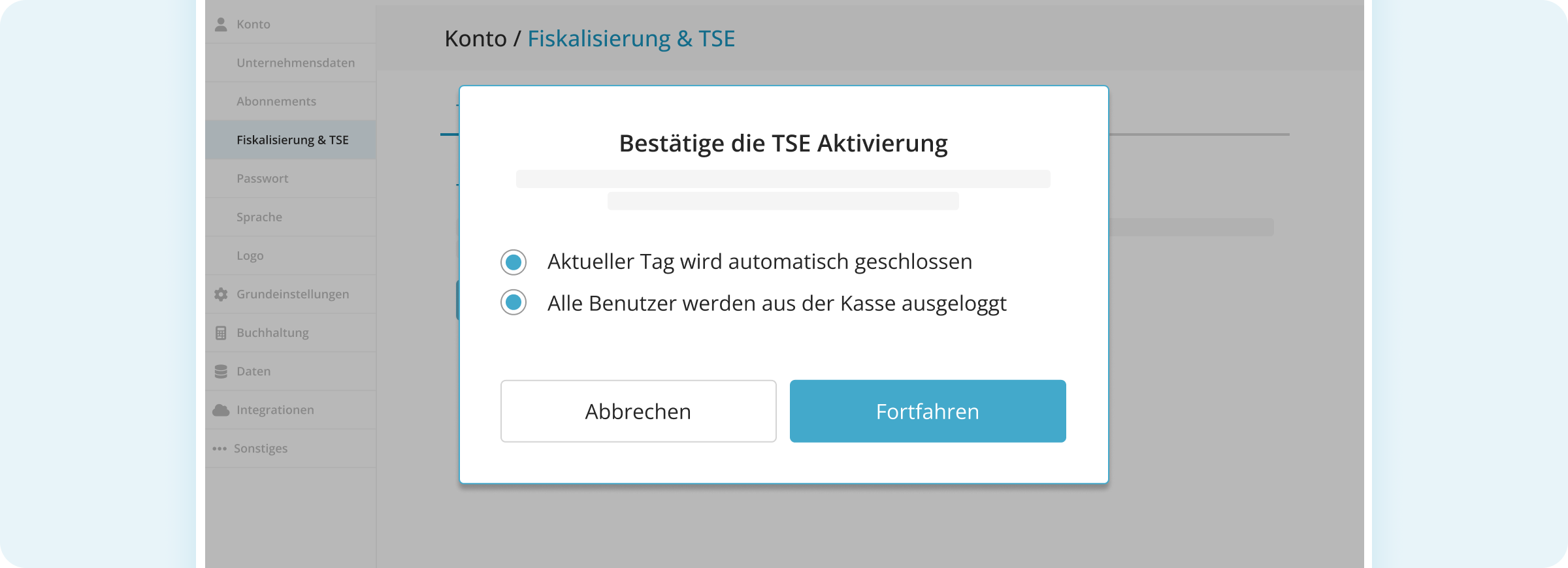
- In the pop-up window, confirm both notes by clicking the blue Continue button:
- The current business day will be closed automatically if it is still open.
- All users will be logged out of the cash register.
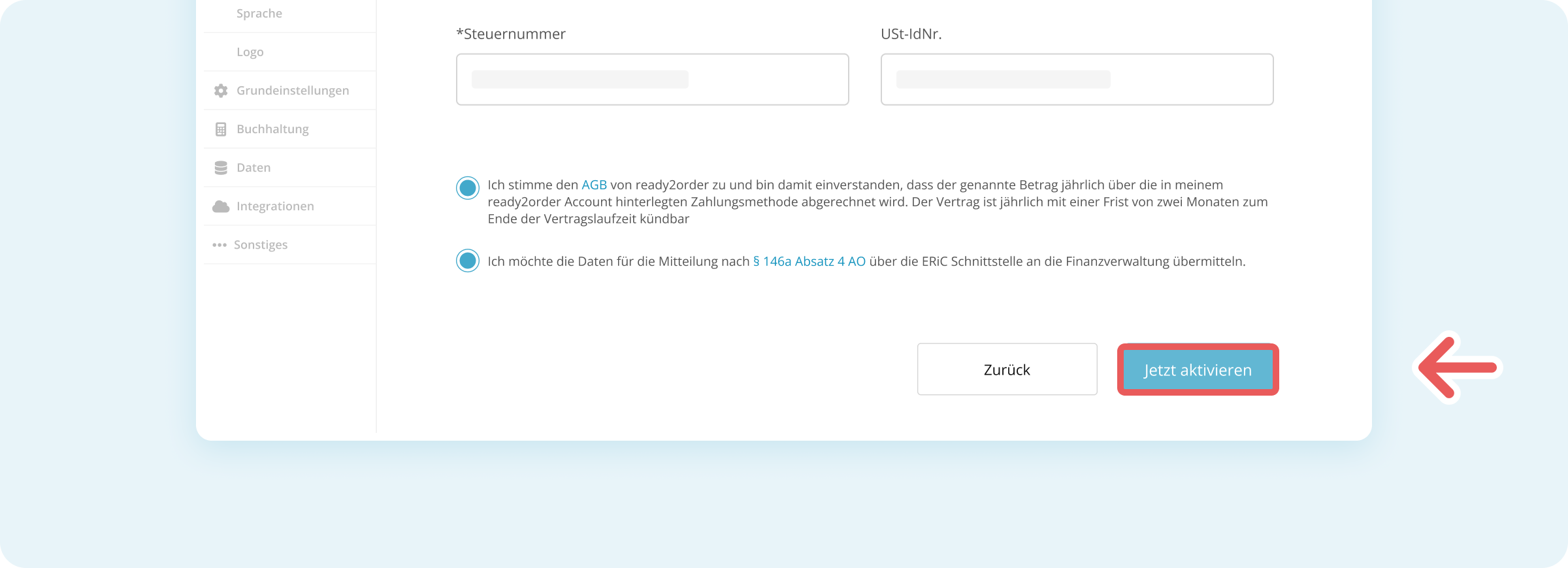
- Review and update your company information in the form if necessary.
- The data is automatically taken from your company profile.
- Activate the Confirm Terms and Conditions checkbox below the company information.
- Click the blue Activate now button in the bottom right to start the activation.
- The activation can take up to 30 seconds.
- If you have not purchased the TSE package yet, you can purchase it now during the activation process.
- Once TSE activation has been completed successfully, you will see a confirmation message. Choose whether you want to reopen the business day or continue with the day closed.
- Log in again on all your devices, such as tablets and smartphones.
- When a device logs in for the first time after TSE activation, it is automatically equipped with a TSE.
After logging in, your active devices are shown in the TSE tab in the Recently registered devices section.
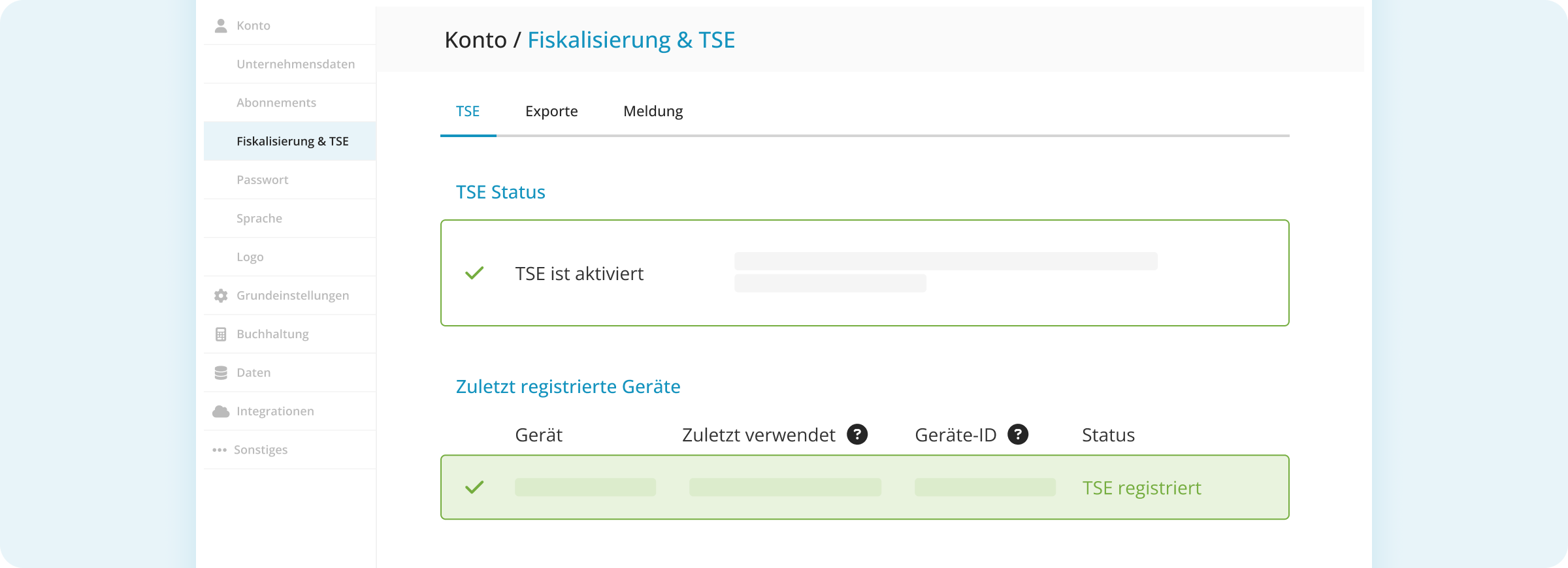
TSE is now successfully activated and all your receipts are signed automatically.
Tip: Make sure all staff members log in again after TSE activation so their devices are registered correctly.
Note: In the Exports tab, you can download the DSFinV-K export and the process documentation.
