Browser update on your readyGo
From 30 January 2025, you can no longer use the ready2order POS system if your device is not running browser version 106 or higher.
If your browser version is not up to date, a white screen will appear on your device. This issue can only be resolved by updating the browser. This help article shows you how to do this.
There are three steps required to update the browser on your readyGo. The process takes around 20 minutes, and we recommend not performing the update during live operation.
Step 1: Update the device software
- Swipe down twice from the top of the screen on your powered-on readyGo.
- Tap the Settings icon (gear).
- Connect to a Wi‑Fi network under Wireless & networks.
- Go back to the settings overview, scroll to the bottom and select About phone.
- Select the first menu item "P2_PRO".
- The device now checks whether a software update is available. If so, start the download by tapping "Download Now" or "Continue to download" in the center of the screen. If your device is already up to date, you can proceed directly to step 3.
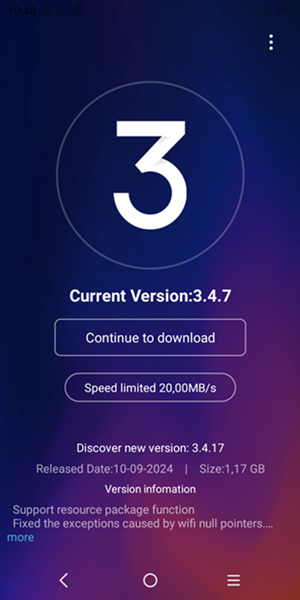
- Once the download is complete, select "Reboot the update".
- The device prepares the update and restarts. After the restart, the update is installed automatically.
Step 2: Restart the device
- Press and hold the power button on the left side of the device for about 2–3 seconds until the options Reboot and Power Off appear.
- Select Reboot and the device will restart.
Step 3: Update the browser (Android System WebView)
After completing steps 1 and 2, select "Open App Store" on your device.
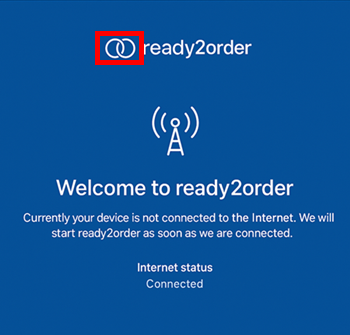
- Swipe down from the top of the screen on your readyGo and tap the circle at the bottom center. Then tap the ready2order logo (infinity symbol) as quickly as possible several times. A window opens where you can select the App Store. If a white screen appears in the meantime, repeat the previous step.
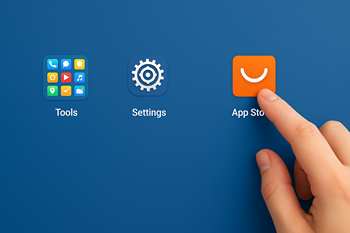
- Select the App Store. If necessary, swipe left on the screen to find it.
- You will now see the Android System WebView app. If Update is shown next to the app, tap it to update. If Open is shown, the app is already up to date.
- Tap the circle in the system bar at the bottom to return to the ready2order app. Restart the device if necessary.
