Connect and use the Inateck Pro 170B barcode scanner
The Inateck Pro 170B is a mobile barcode scanner that you can use with Android and Windows devices. It allows you to scan products quickly and reliably – whether during sales or when recording incoming goods.
In this guide, we show you how to connect the scanner and start using it right away.
Turning the scanner on/off
Turn on: Before connecting the scanner, you need to switch it on. Briefly press the scan button. The green light flashes and you hear a "beep".
Turn off: To switch off the scanner, press and hold the scan button for approx. 8 seconds. The indicator light turns off and the device shuts down.
Connecting the scanner
The scanner can be connected to Android and Windows devices via Bluetooth or USB.
Connect scanner to Android (Bluetooth)
To connect the scanner to an Android device (e.g. a ready2order device, smartphone or tablet):
- Turn on the scanner.
- Open the Settings on your device.
- Enable Bluetooth.
- Scan the barcode for Bluetooth HID Mode and then the one for pairing from the user guide, or scan them directly here.
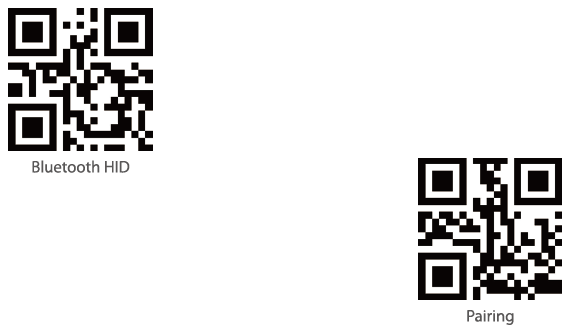
- Select the Inateck Scanner from the list of available devices.
- Confirm the connection on your device.
The scanner is now connected.
Connect scanner to Windows (Bluetooth)
To connect the scanner to a Windows PC or laptop:
- Turn on the scanner.
- Click Start (Windows icon) in the bottom-left corner of the taskbar.
- In the Start menu, click Settings (gear icon).
- Under Devices, click Bluetooth & other devices.
- Enable Bluetooth.
- Click Add device at the top.
- Select Bluetooth in the dialog.
- Scan the barcode for Bluetooth HID Mode and then the one for pairing from the user guide, or scan them directly here.
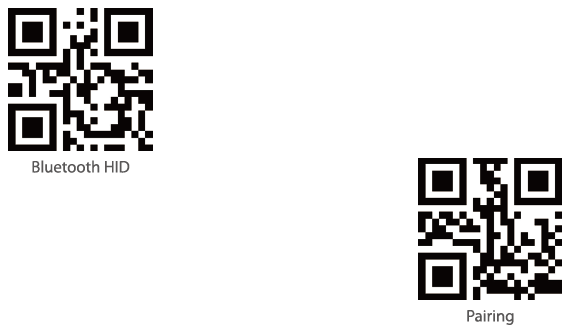
- Then scan the pairing barcode from the user guide.
- Select Inateck Pro 170B Barcode Scanner from the device list.
- Confirm the connection.
- If prompted on your device, confirm that you want to connect the scanner.
The scanner is now connected and ready to use.
Connect scanner via USB to Android or Windows
You can also use the scanner with a cable.
- Plug one end of the USB cable into the scanner or into the port on the base.
- Plug the other end into a USB port on your Android device or computer.
- Wait a moment until the device is recognized automatically.
The scanner is ready to use immediately (no additional setup required). If the device is not recognized, scan the two barcodes shown in the image below:
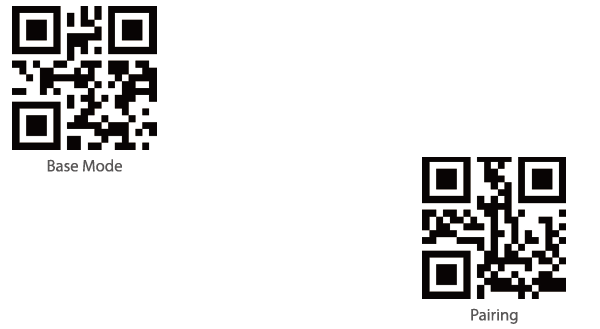
Important information for connecting the Inateck scanner via USB to the readyTab Station:
To use this function, you must disable the so-called USB Device Mode in the settings. Proceed as follows:
- Swipe up from the bottom on your readyTab.
- Select the three dots on the left side.
- Tap Settings.
- Scroll down on the left side and select USB Device mode.
- Disable the toggle for USB Device mode.
Resetting the scanner to factory settings
If the scanner cannot establish a connection or behaves abnormally, you can reset it to factory settings. All custom settings will be deleted. To do this, scan the following barcode in this article or the barcode on page 25 of the user guide.